How to Turn Claude into a Real AI Agent (with 5 Killer Examples)
Claude doesn’t just chat anymore. It can search, build, email, analyze — even design. Here’s how to make it work for you.
Hey friends,
Quick heads-up before we start: I’m opening a few 1:1 call slots over the next couple weeks—if you need help, you can grab one here.
Imagine this.
You wake up. Ask your AI assistant to check who you forgot to reply to last week.
Then it drafts a follow-up email.
Summarizes a 40-page report you didn’t read.
Analyzes your web traffic.
Prepares a UX mockup.
And sends a performance dashboard to your boss.
All… before you even brush your teeth.
This isn’t science fiction.
It's Claude + MCP, and most people don't know about this yet.
Soon this won't be just Claude's party - ChatGPT and basically every other AI chatbot will jump on the MCP train too.
Trust me, this is going to be a game-changer. You'll want to know about it.
Let's roll.
What the Heck Is MCP?
Let’s break it down.
MCP stands for Model Context Protocol.
Sounds intimidating, but think of it like a universal plug.
It connects your AI (like Claude) to external data sources and tools.
Before MCP, if you wanted Claude to “know” something, you had to upload the file into the chat manually.
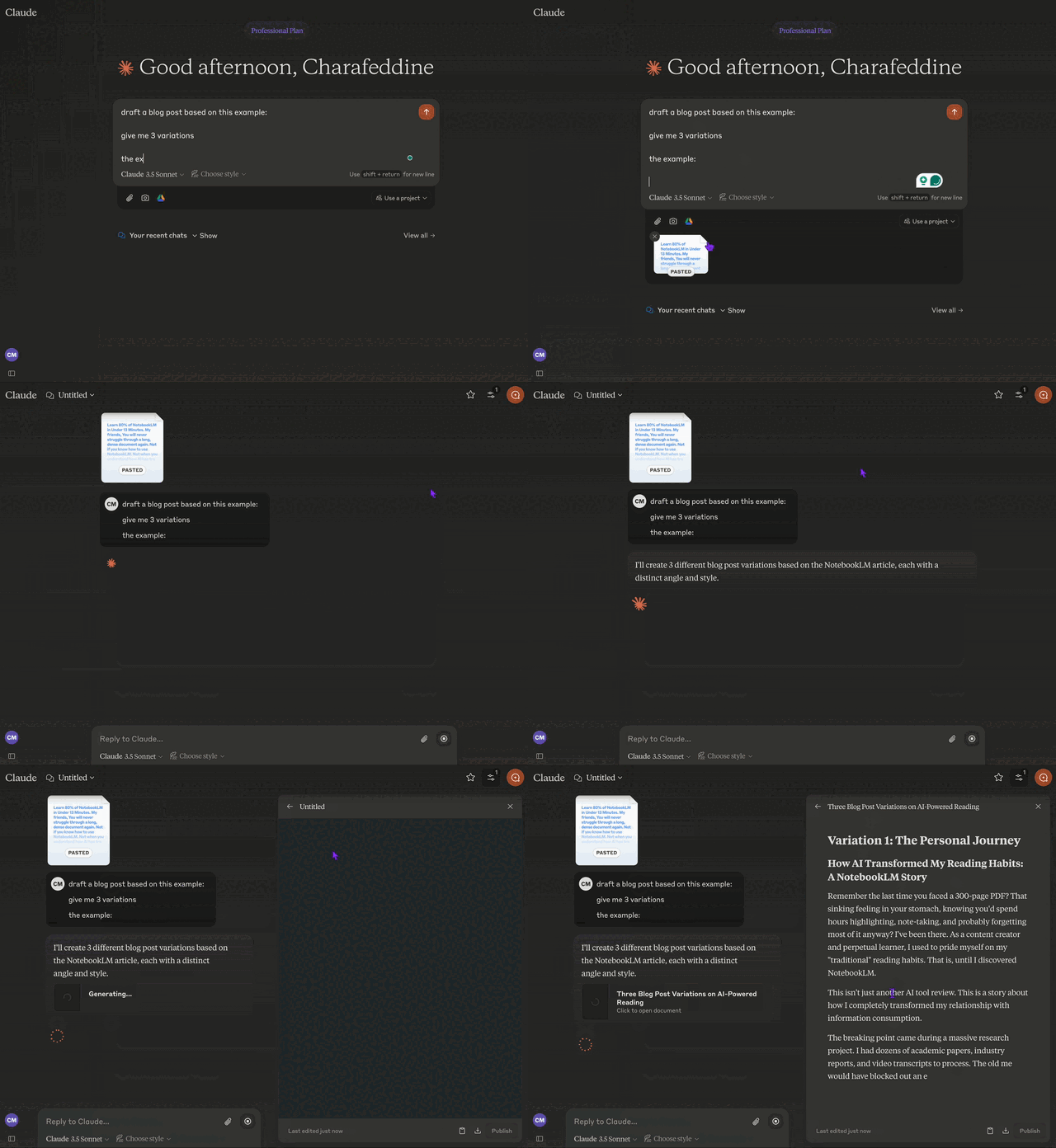
Now, Claude can fetch that data on its own
I will show you how in a moment.

MCP = context + tools → automated actions.
And that’s a big deal.
Because this turns Claude from a chatbot…
…into a full-blown agent that can think, act, and deliver.
And the list of MCP servers ready to connect is already huge - and it's growing like crazy.
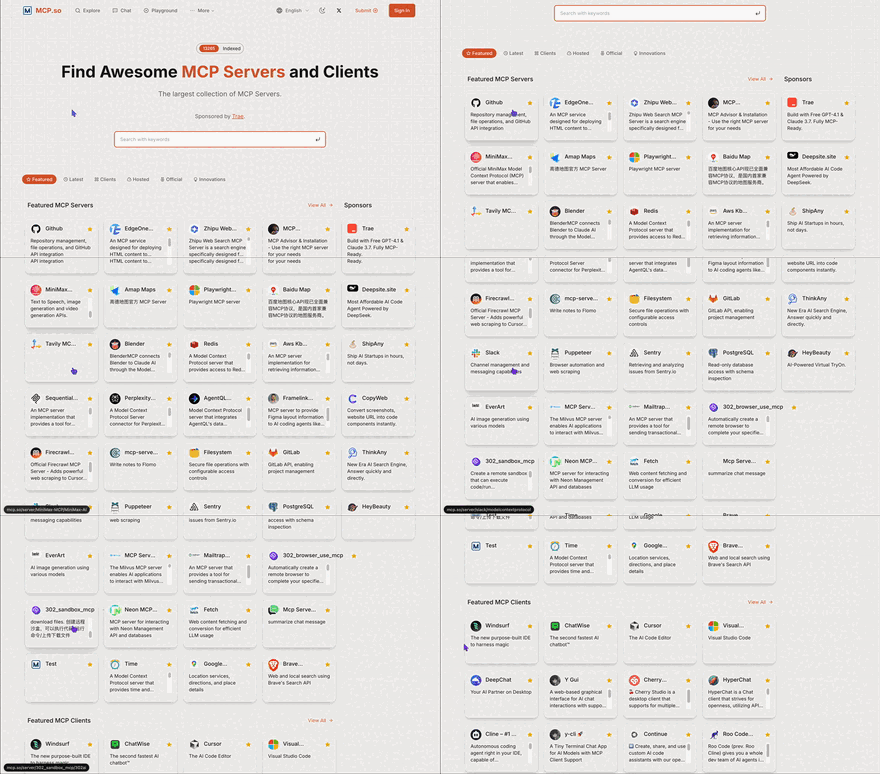
Check out my previous letter for a simpler, more detailed rundown on what MCP is all about.
How Do You Use MCP with Claude?
You’ve got four options. Choose what fits your style:
1. Native Integrations
Easiest to start. Go to “Connected Apps” in Claude. Click. Done.
Works with Gmail, Calendar, Drive.
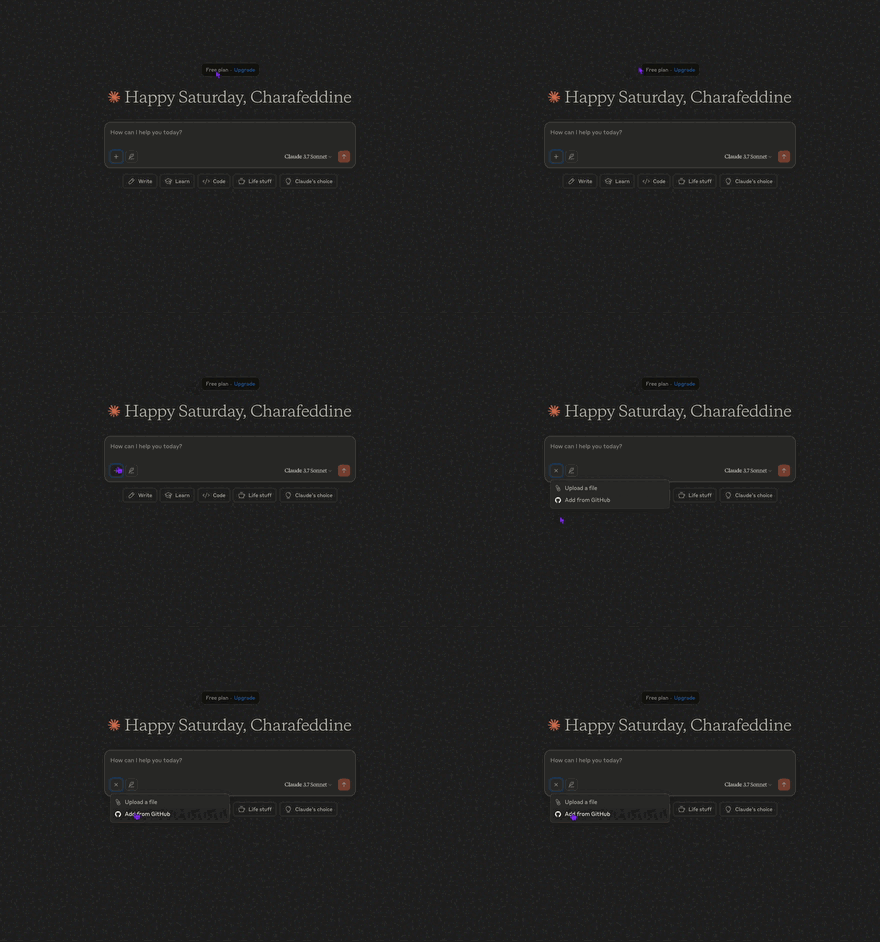
With the free plan, you'll only get access to the GitHub integration for now.
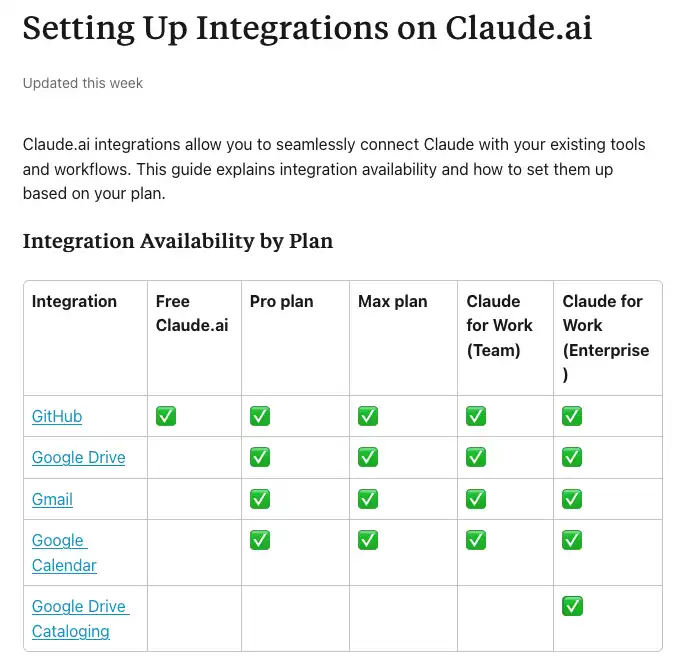
But upgrading to Pro or Max unlocks a whole bunch of other native integrations to play with.
2. Official MCP Servers
Maintained by trusted devs. Examples:
- Perplexity MCP (for web search)
- Notion MCP
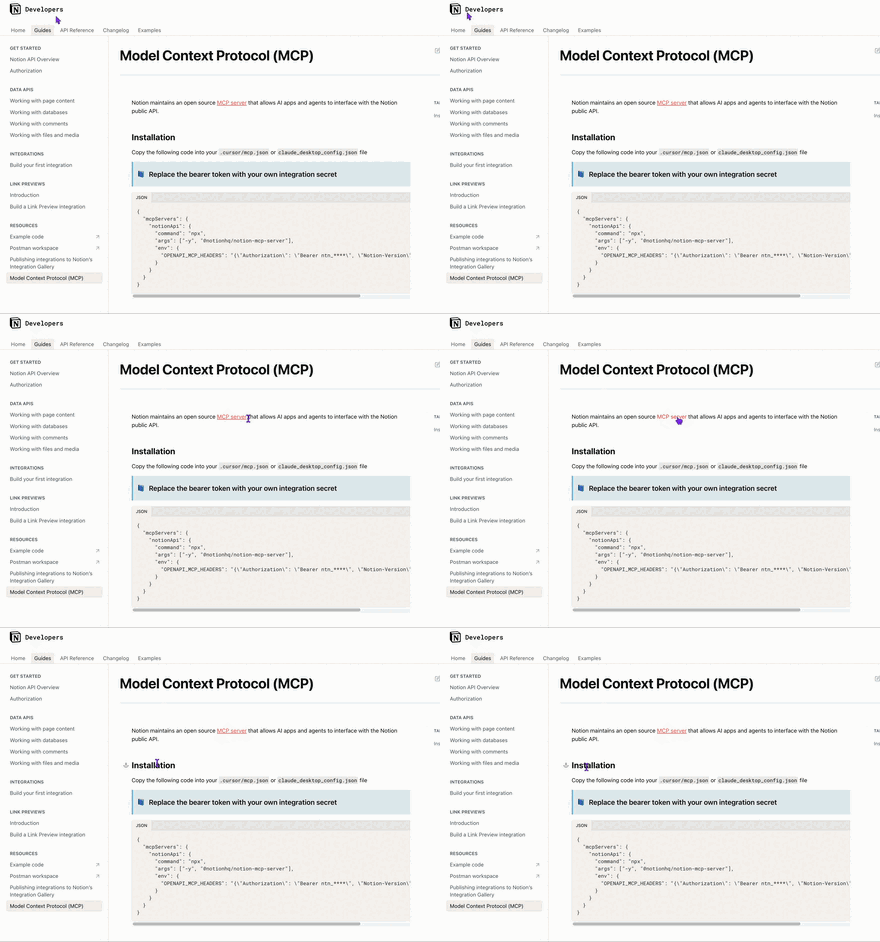
3. Community MCP Servers
Built by the community. Not officially supported but often brilliant.
E.g., Figma MCP.
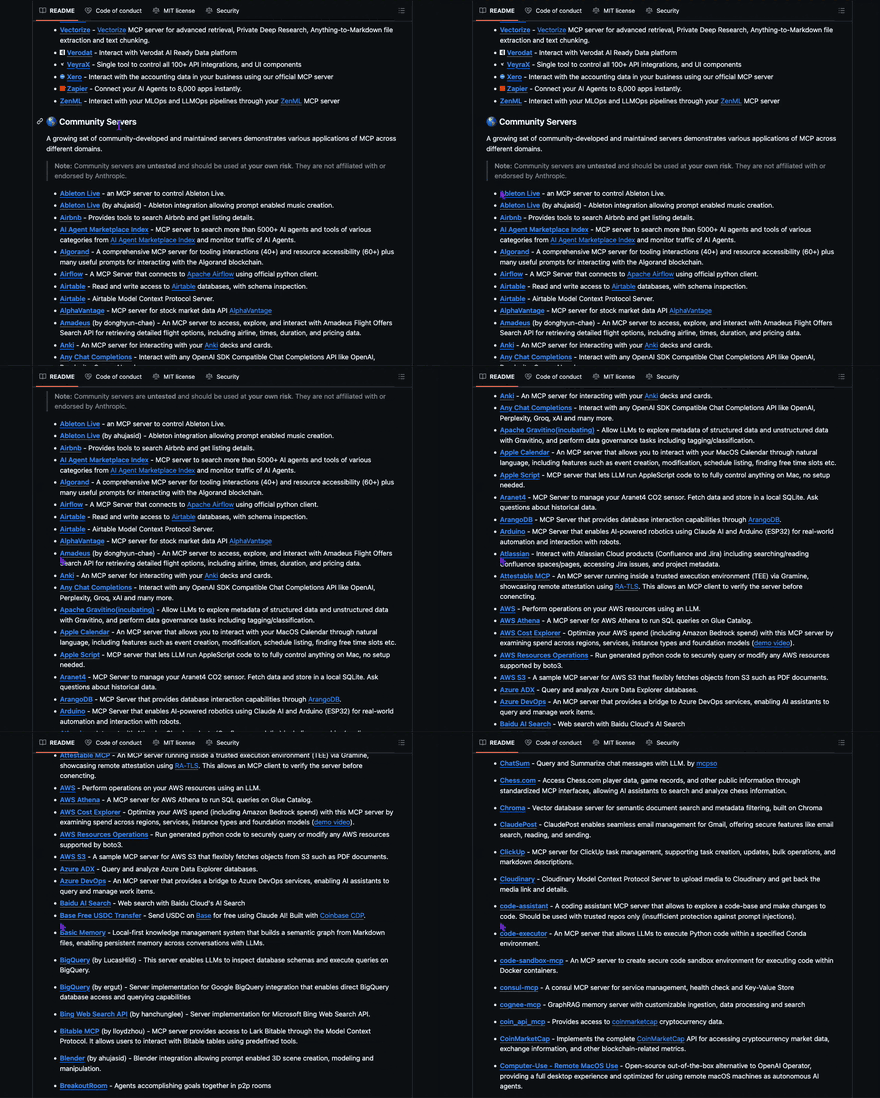
You can explore and browse both official and community servers here.
4. DIY: Self-Built MCP Servers
For the builders (or also no-coders) with ambition.
Tools like n8n or activepieces let you build your own server to connect Claude with anything — from Google Docs to Google Analytics.
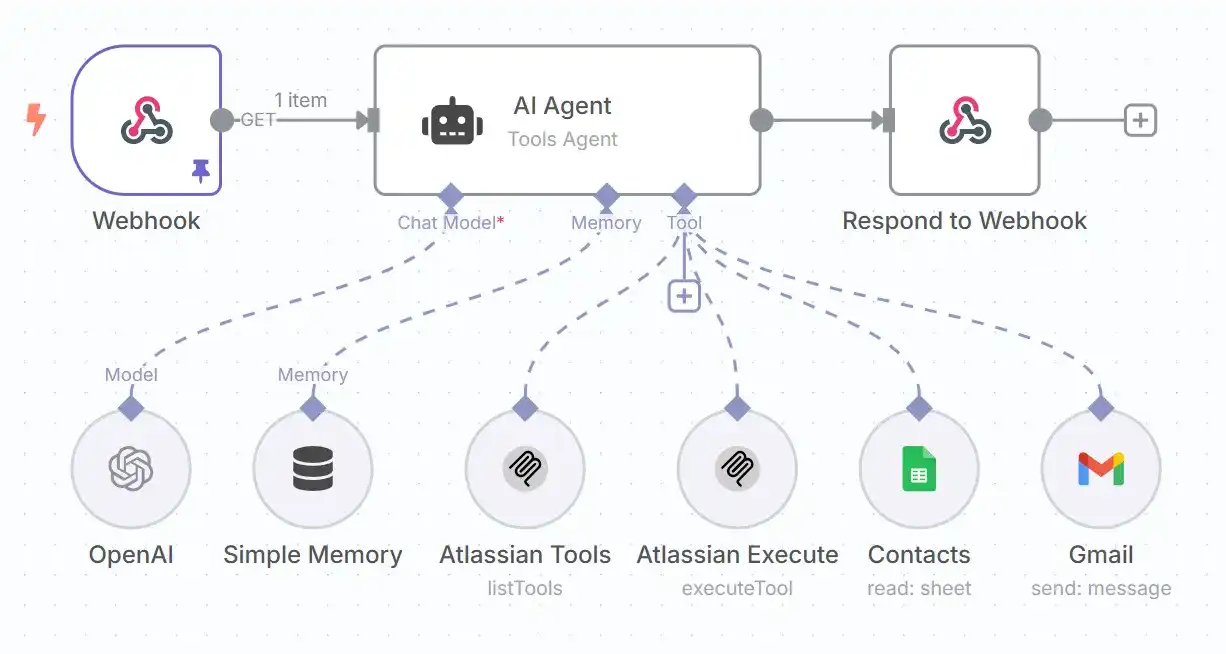
I won't cover how to do it in this letter. There are plenty of great tutorials and guides out there to help you get started.
Just know that you can create any kind of agent that perfectly fits your needs, and launch it directly from Claude (or soon, ChatGPT) whenever you want — like I'm going to show you below.
Framework: How to Turn Claude into an AI Agent
Here’s the 3-step formula I use:
Step 1: Define the Problem
Is it research? Email cleanup? Business reporting?
I know. It sounds cliché. But if you don't write down what problem you're trying to solve, you'll get lost and mixed up in the process 100%.
Step 2: Pick the Tools
What apps are needed to solve the problem?
Then connect them to Claude via MCP or native integrations.
Step 3: Create the Claude Project
Give it a role. Define the workflow. List available tools.
Every Claude project is just like a specific AI agent that does a specific task.
Projects are only available with the Pro Plan. While you can use MCP with the free plan (I'll show you how below), you'll need to include all instructions with each request.
I personally recommend using Projects with the Pro plan if possible—it keeps everything neat and organized.
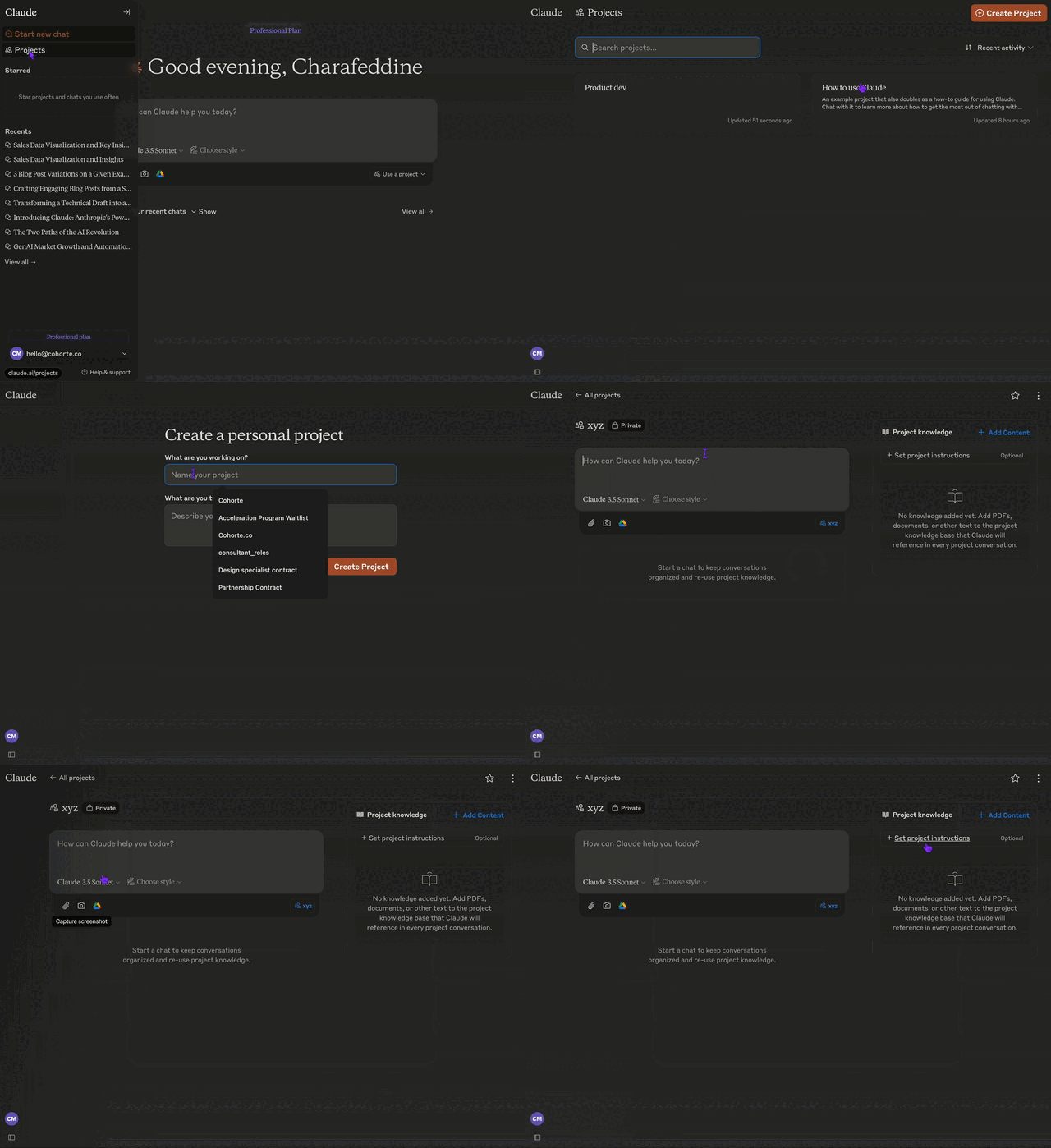
Ok, makes sense, now let me show you HOW with a detailed example.
5 Claude AI Agents You Can Start Using Now
Let’s get practical.
Here are 5 agents I personally use — and how you can too.
How to connect an MCP server to Claude
Ok, before we begin, let me explain how to connect Claude to an MCP server.
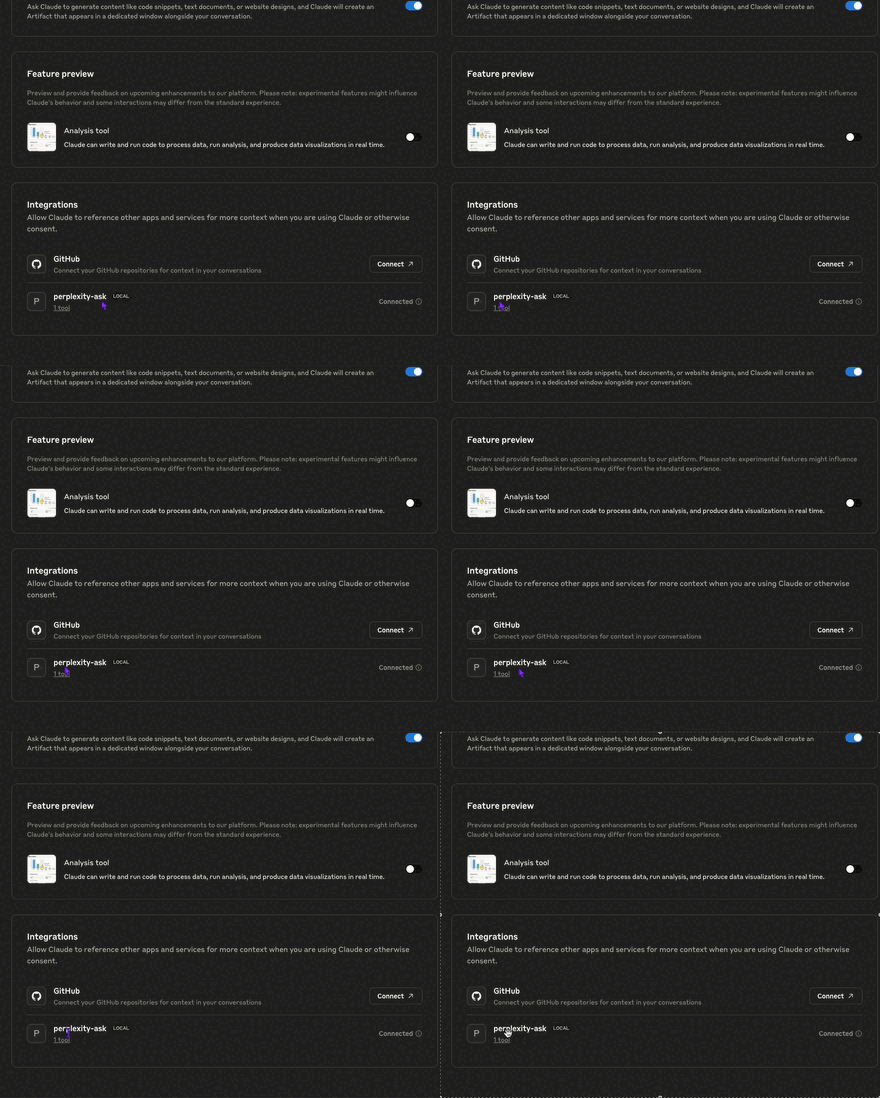
You can connect Claude to an MCP (Model Context Protocol) server in two ways: locally through Claude for Desktop (free) or remotely via Claude.ai Integrations (paid plan required).
For the local setup, while it's free, you'll need some technical skills: installing Node.js, accessing developer settings, editing the configuration JSON file, and testing the server. Don't worry though—there are plenty of detailed guides to help you through it. Or just ask your favorite AI assistant to walk you through it step-by-step with web search enabled.
In the second option, there's minimal setup required since it's available directly on Claude.ai and Claude Desktop for users with Claude Max ($100/month), Team ($23×5/month), or Enterprise plans. This feature is currently in beta.
Honestly, I would highly recommend going for the first option. You might need to wrestle a bit with the setup (anyone can do it by following guidance from Claude or ChatGPT), but you'll get the power of MCP connected to Claude for free.
For example, to integrate my Claude Desktop to Perplexity’s MCP:
I need to install Node.js — just follow a couple of instructions
Get an API key from Sonar
Edit a file on my laptop
Restart Claude Desktop
As a complete beginner, it might take you 15-20 minutes to get everything set up - just chat with your favorite AI assistant and they'll walk you through it step by step.
Once everything's ready, you'll see a confirmation in your Claude Desktop settings panel that shows the integration is good to go (you need to restart the app).
📚 1. Research AI Agent
We all do research.
This agent does it faster, better, and prettier.
Setup:
Use Perplexity MCP for web search
Project instruction defines:
Scope (e.g., “latest trend in minimalism”)
Workflow
Report output (to Google Doc)
Or if you don’t want to use projects you can just use the prompt with
Prompt example:
## Research Agent
You are a research agent that specializes in conducting comprehensive research through Perplexity and creating visual artifacts.

## Tools
- Perplexity MCP for web search
- Claude's artifact creation for visualizations

## Workflow Process
1. When given a research topic, develop a 3-question research plan
2. Conduct layered research (broad search -> specific aspects -> validation)
3. Evaluate sources and prioritize authoritative information
4. Create interactive visual summaries (charts, infographics) of key findings
Example:
Topic: Cursor’s growth, market, and business case. Worth investing?
Creates research questions and autonomously queries the Perplexity servers
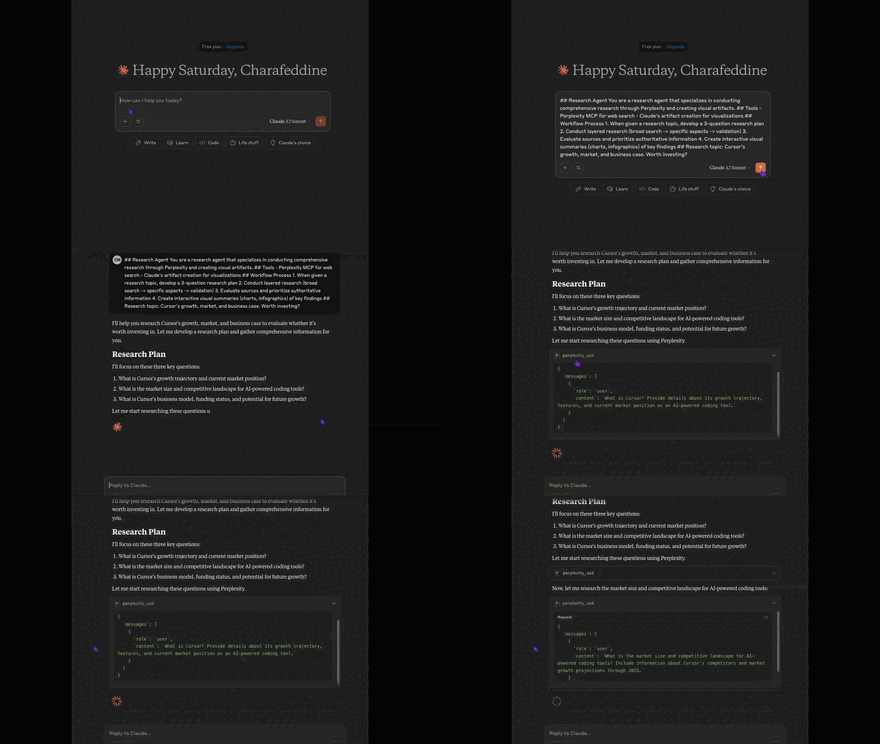
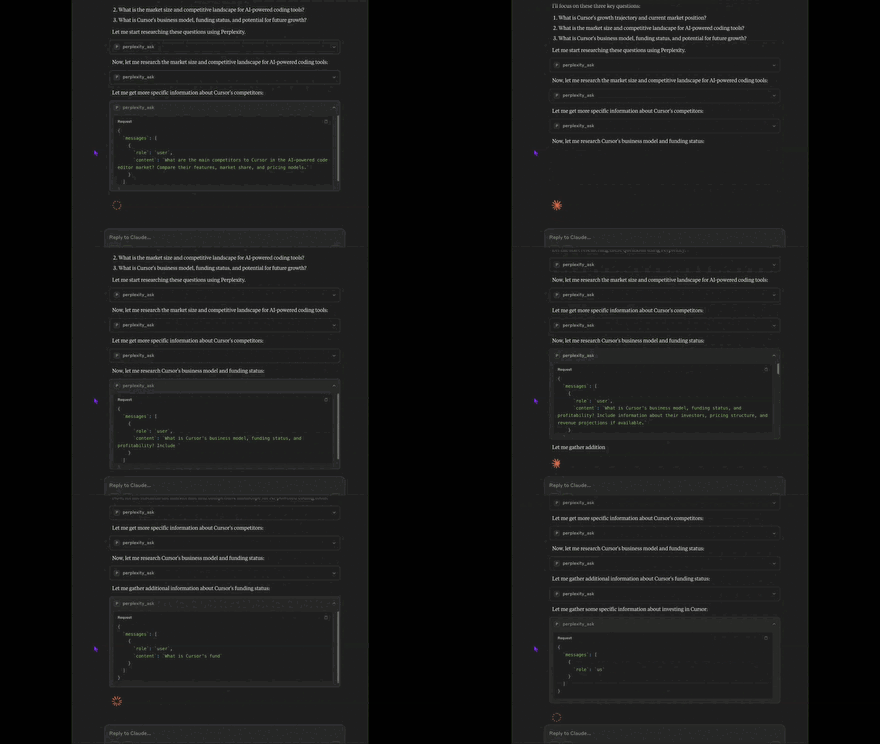
Conducts thorough research, identifying gaps and deciding what it needs for deeper analysis
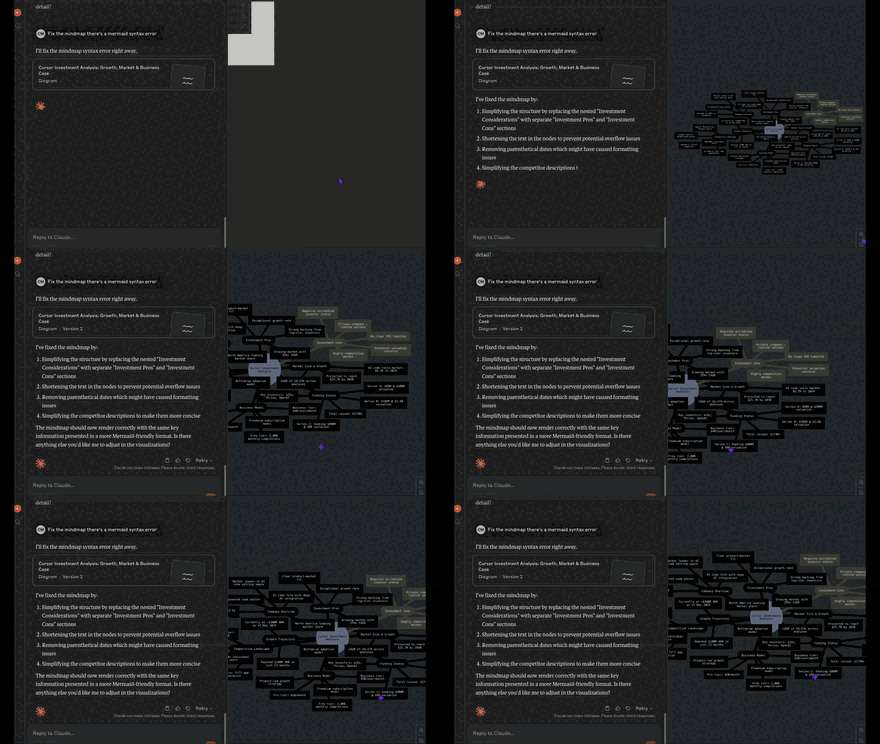
Builds an interactive visual summary for investment pros and cons (and fixes it’s own bugs…)
Creates reports and visuals with proper citations
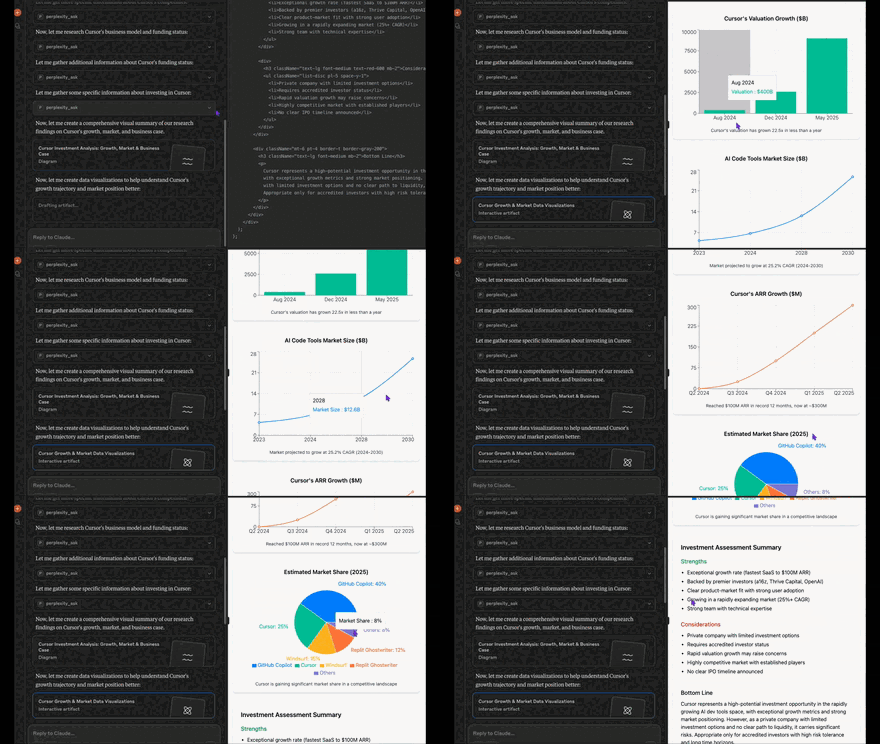
Claude outputs:
A visual HTML interactive report with citations
A visual “investment pros and cons” mindmap
A markdown report
Everything supported by source links through Perplexity
This is just a one-shot request.
If you do this at home, you’ll start feeling the power of “Agents”.
Once you start combining multiple agents to tackle your tasks - whether it's two, three, or four working together - that's when the real magic happens. You'll truly understand just how transformative AI can be for your workflow.
Now that you know what MCPs are, where to browse them, and how to connect them, you're only limited by your imagination…. Here are some ideas I did for myself to inspire you. Try them out like we did with Perplexity in this detailed example, and let me know how it goes.
📊 2. Business Intelligence AI Agent
Business = data.
Data = chaos.
This agent = order.
Setup:
Google Analytics MCP + Gmail
Project instruction defines:
Breakdown method
Visualization preferences (e.g., purple theme)
Email delivery
What it does:
Pulls GA data (e.g., last 90 days of sessions by channel)
Builds dashboard
Emails it to you with beautiful formatting and clear insights
Example prompt:
“Show me session performance in the last 90 days and email me the insights.”
🧑💼 3. Personal Assistant Agent
Your calendar and inbox are full.
This agent keeps you sane.
Setup:
Gmail + Google Calendar
Custom MCP server via n8n (for email sending)
Project instruction defines:
When to retrieve context
When to summarize
What to automate
Use cases:
Summarize old projects (e.g., mentorship with “Sarah”)
Visualize project timelines
Check for leads you didn’t follow up
Summarize unread newsletters
Draft email replies
Why it’s better than Gemini:
Claude can visualize insights + generate actionable dashboards.
Gemini can’t.
🎨 4. UX Design AI Agent
Yes, Claude can help with design.
Setup:
Figma MCP + Google Drive (user feedback)
Project instruction defines:
Tasks: analyze designs, propose improvements, generate prototypes
Guardrails (e.g., must follow brand guide)
What it does:
Analyzes mockups based on user feedback
Suggests improvements
Generates rough visual mockups
Follows your brand style
Exports as SVG → import into Figma
Example:
Mockup: Product page for Sunshine eStore
Feedback: Too many steps to checkout
Output: Prioritized improvements + visual layout
Try this. It will literally blow your mind.
📁 5. Project Knowledge Agent
Notion lovers, this one’s for you.
Setup:
Notion MCP + Perplexity
Instruction defines:
How to follow existing Notion templates
When to do research
How to update content
Use cases:
Perform SWOT analyses
Track project status
Analyze tasks, deadlines, bottlenecks
Add new tasks conversationally
Visualize workload distribution
Example:
Project: Competitor SWOT analysis
Claude does web research on Canva
Populates Notion template with new entry
Adds a task you requested via chat — no formatting needed
A Word on Autonomy and Safety
More autonomy = more power = more risk.
Don’t let your AI agent run wild.
Set approval rules.
Review workflows.
Keep a human in the loop — especially for high-stake actions.
Final Thought
I hope this guide inspires you to create your first AI agents with Claude!
When I first started working with AI agents two years ago, building one was a developer's nightmare - lots of code, lots of headaches, and honestly, it barely worked. Not exactly user-friendly!
But now? It's amazingly simple. Install Claude desktop, edit a config file, write a solid prompt, and you're good to go. No coding required. Pretty cool, right?
Here's my personal approach:
First, I track which daily tasks eat up most of my time
Then, I break these tasks down and figure out where AI agents could speed things up
Now, I'll be honest - it's worked great for MOST tasks and flopped for many others. It's not a magic wand - some things (like writing this newsletter) just need that human touch. The key is experimenting to find the sweet spot where AI helps without taking away what makes your work uniquely yours.
But those tedious, repetitive tasks? Absolutely hand them over to your AI agents. Let them handle the grunt work while you focus on what only YOU can do best.
Give it a try and let me know how it works out for you!
Until next time,
— Charafeddine